Lost Audio Engine
Lost Audio Engine (Browser Tools)
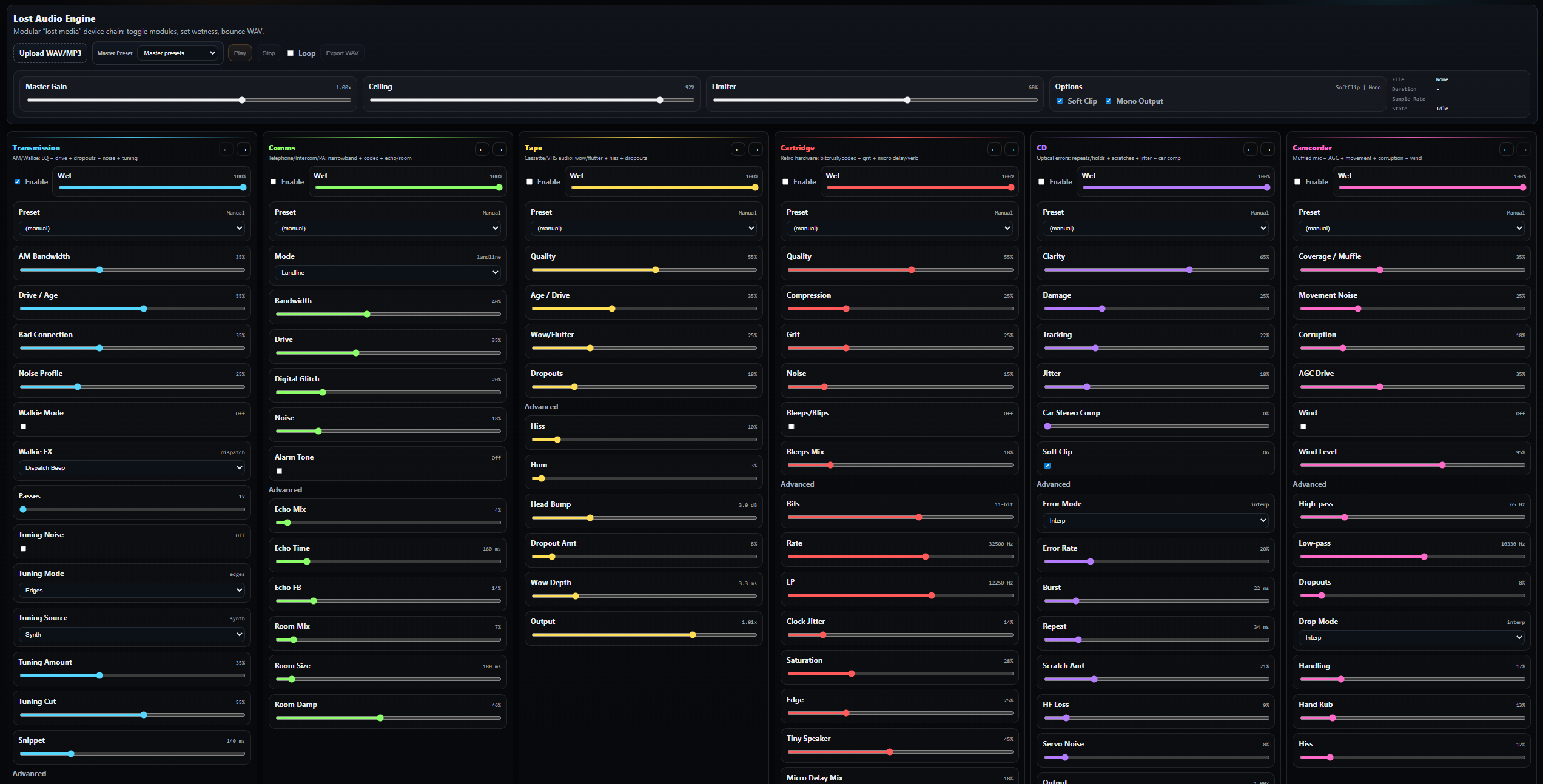
Lost Audio Engine (LAE) is a free, browser-based “lost media” audio processor suite — a collection of stylized device simulators for turning clean audio into radio transmissions, intercom/PA, VoIP calls, cassette/VHS tape, retro game cartridge compression, damaged CDs, and windy camcorder recordings.
Upload a WAV/MP3, tweak the tuners for real-time preview, then bounce a processed WAV with the same exact processing chain (it renders offline, so exports are deterministic and match what you hear). Each module can be enabled/disabled and blended with a Wet control, letting you stack multiple “devices” to build unique degradation chains.
Why free? Because I believe these kinds of artifacts and “errors” often happen by accident, and no one should get to “own” the past — especially the sound of it.
Warning: pushing the destruction hard (drive, limiter, noise, dropouts, etc.) can get loud fast. When experimenting, start with your Master Gain turned down and increase slowly.
VST3 Plugin Suite (Included)
Alongside the browser tools, this project now includes a free VST3 suite so you can use the same “lost media” sound design directly in your DAW.
Included plugins:
- Transmission Engine (radio/comms tone + tuning behavior)
- Tape Engine (cassette wear, compression, drift)
- Television Engine (old TV speaker/broadcast coloration)
- CD Engine (digital edge + damaged-disc character)
- Comms Engine (narrow-band communication voicing)
- Conference Engine (speakerphone/meeting-room tone)
- Camcorder Engine (consumer camera audio character)
- Cartridge Engine (retro cartridge/media grit)
- Open Mic Night (feedback + room/live coloration)
Install (Windows)
- Copy each .vst3 plugin into C:\Program Files\Common Files\VST3\ (or your custom VST3 folder).
- Rescan plugins in your DAW.
- Load from your VST3 plugin list.
Note: .vst3 plugins often appear as folders/bundles on Windows. That is normal.
DAW Notes
- Ableton Live 11/12: Preferences -> Plug-Ins -> Rescan.
- Audacity: Effects -> Plugin Manager -> Scan/Enable.
How To Use Best
Presets are starting points, not final masters.
These plugins sound best when you tweak by ear for each source:
- Start from a preset, then fine-tune parameters.
- Use small moves first (often 5-15%).
- If it gets too extreme, reduce damage/noise before adjusting tone/filtering.
- Automate key controls over time for more realistic device behavior.
Download
Click download now to get access to the following files:
Development log
- Occlusion Engine VSTApr 14, 2026
- Replaced Camcorder VSTMar 01, 2026
- VSTS RELEASED!Feb 26, 2026
- VSTS Coming soon!Feb 26, 2026
- bug fixFeb 11, 2026
- LOST AUDIO ENGINE IS LIVEFeb 10, 2026